01 · Triggers
Start from the right event
Nine triggers tied to real events in your operation, from a received message to a sent campaign. Narrow each one down by channel and conditions.

Close inactive conversations on their own, send a reminder when the customer goes quiet, move chats stuck with the bot to your team queue and follow up at the right time. No code, on WhatsApp and every channel.
7-day free trial, no credit card required.
The chatbot talks to the customer. Workflows handle what your company does around the conversation: move, assign, tag, remind and close.
Meet Chatbot StudioAll in a visual editor inside Talqui, under Marketing › Automations.
Nine triggers tied to real events in your operation, from a received message to a sent campaign. Narrow each one down by channel and conditions.
Message, session, contact and logic, plus the steps your installed plugins add. Move, assign, tag, save data, wait and close.
Paths and filters check channel, inbox, tags, fields, message text, time and weekday, combined with AND, OR and AND NOT.
Wait for reply holds until the deadline and goes down Replied or No reply. Wait for business hours holds the flow until your team is in and, on WhatsApp, uses an approved template outside the 24-hour window.
Every scenario came from conversations with Talqui customers. None of them needs code, and all of them adjust to your own rules.
The contact never answered the bot. Send a reminder and, with no reply, close it with the right reason.
Someone added the cancellation tag? The conversation moves inboxes right away.
Whoever answers “I want to know more” goes straight to a salesperson, with the interest saved on the contact.
A contact tagged VIP wrote in outside business hours? They go to the priority inbox.
Contacts who don't answer in time get an approved follow-up during business hours and become cold leads.
Contacts who reply move to the sales inbox, get an operator and are tagged as engaged.
An automation that touches your whole operation needs versions, visibility and brakes. Workflows ship with all three.
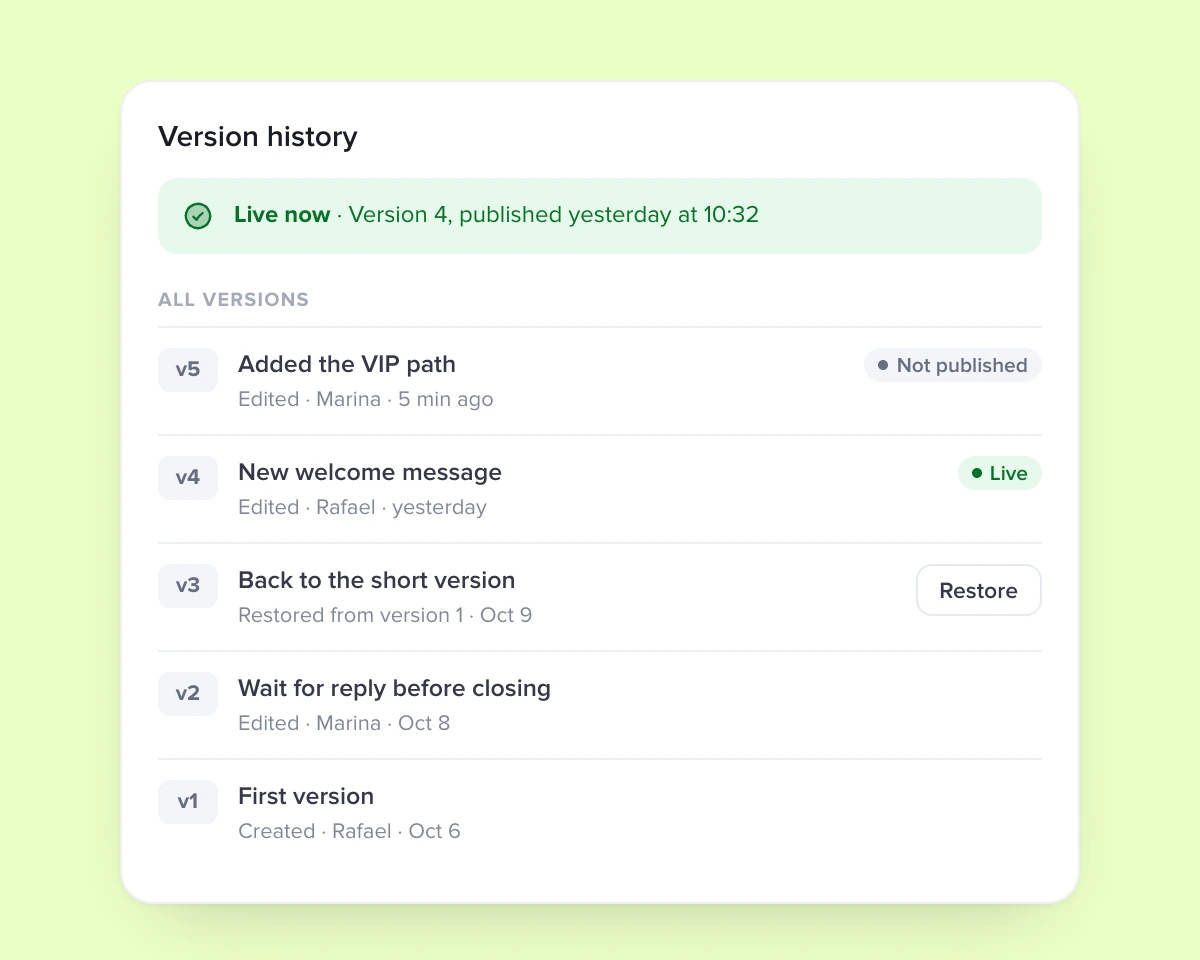
Every saved change becomes a version, with its author. Runs already in progress finish on the version they started with, and you can go back to any earlier one.
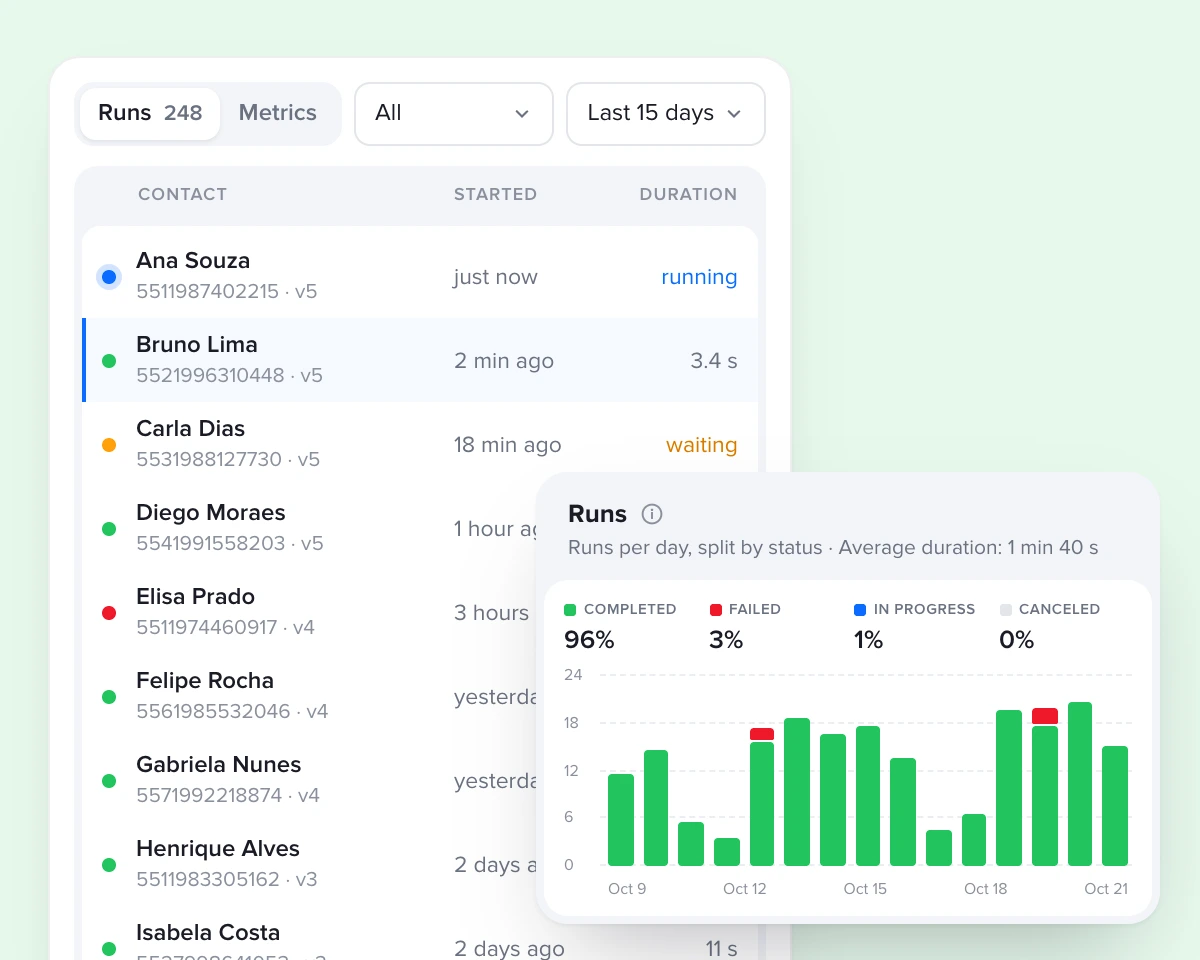
The Runs panel shows every execution in real time: the contact, when it started and where it is now. The Metrics tab shows daily volume and results.
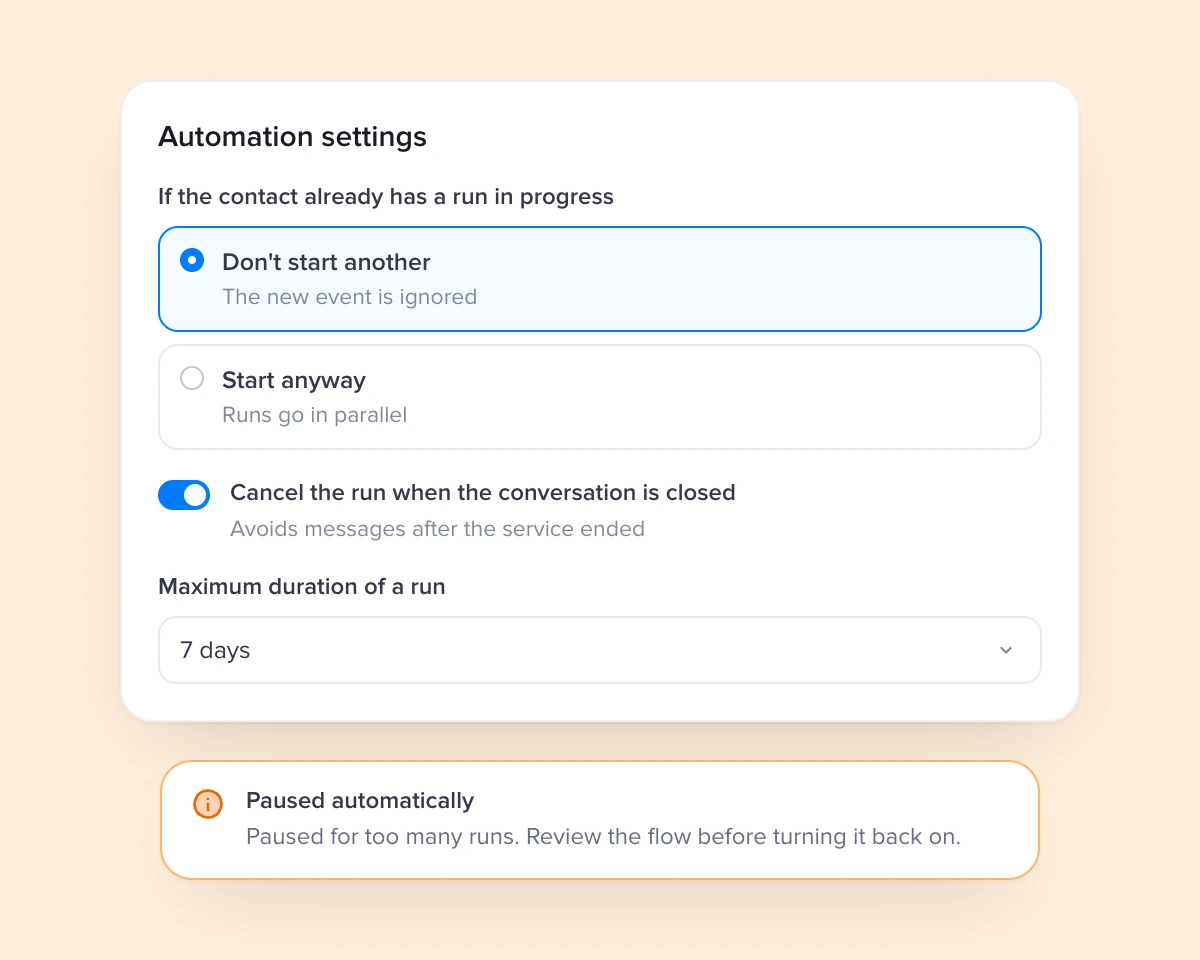
If an automation fires an unusual number of times, Talqui pauses it and tells you why. And what a workflow does is labeled in the conversation.
Why Workflows
In just over a minute, see how a workflow is built, runs and shows every execution.
We don't want to tell a company how its operation should work. Every new tool forces the team to relearn everything and change the way it works. We built automations to flip that: Talqui adapts to your team, and you build, edit and change every flow whenever the operation calls for it.
Safe to change
With AI agents
70%
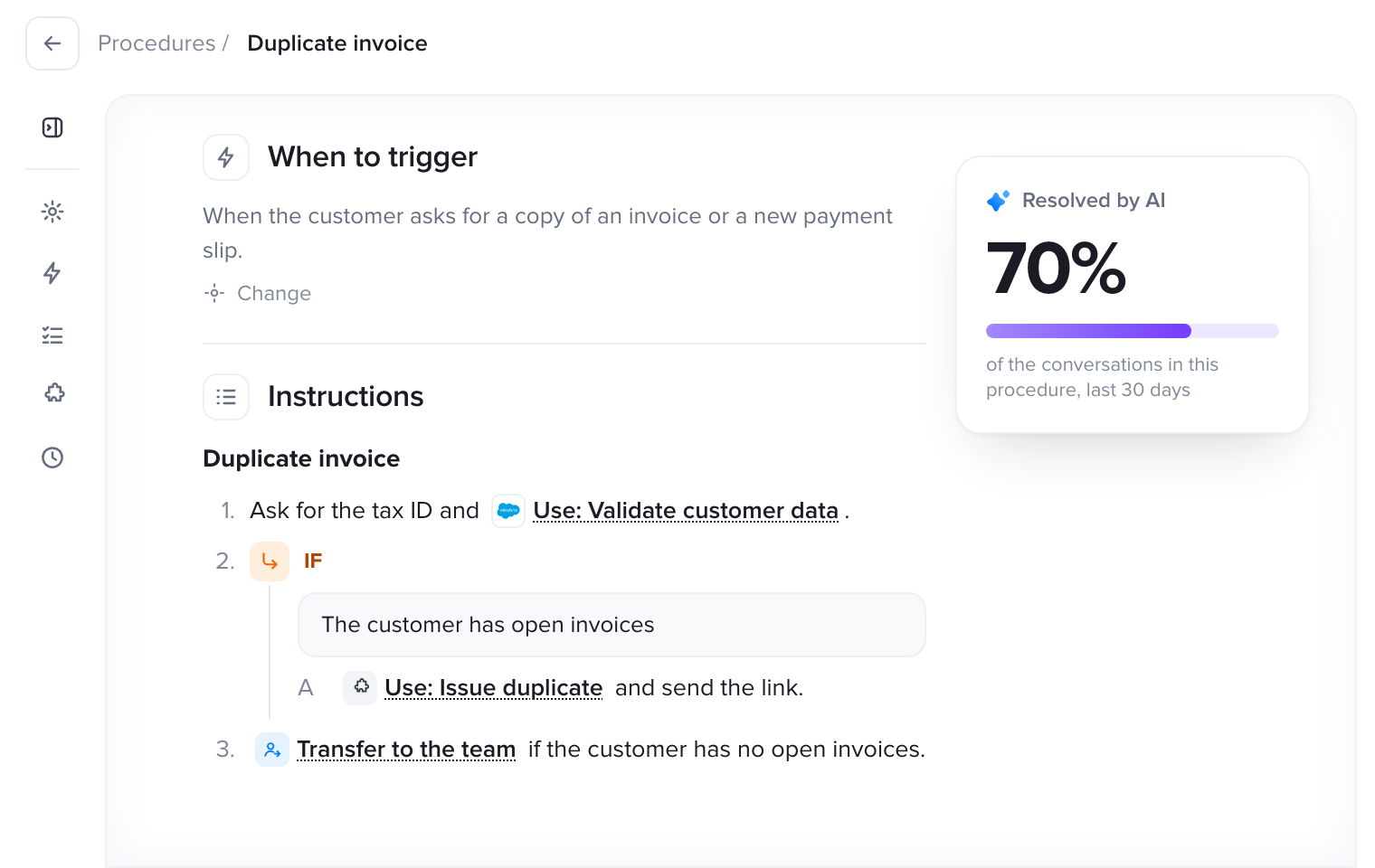
More than 70% of the demand that used to need a person is already handled by Talqui's AI agent. Workflows take care of what happens around the conversation.
FAQ
What teams ask the most before automating customer service.
Still have questions? Talk to us at support@talqui.com
No. You build the automation in a visual builder: pick the trigger, set the conditions and add the steps. Every step has a settings panel with a link to the help center.
The chatbot talks to the customer, with menus and questions. Workflows automate the process around the conversation: tags, transfers, follow-ups and integrations. They work together: the chatbot can start an automation with the Run workflow block.
Triggers and conditions apply to conversations from the channels connected to Talqui, and you can filter by channel. Sending messages depends on the channel. On WhatsApp, outside the 24-hour window, you choose to send an approved template, skip the step or stop the run.
Every save creates a version and only the published version runs. To go back, open the history and restore an earlier version. Runs already in progress finish on the version they started with.
In the Runs panel you see every run with the status of each step, the event that started it and the error, when there is one. The Metrics tab shows runs per day, per version and the delivery of the messages sent.
Yes, through plugins that offer steps for Workflows. The CRM plugin, for example, identifies the contact in the connected CRM and saves the owner and the customer stage in fields the automation uses to route the conversation.
You decide whether a contact can have more than one run at a time, whether the run stops when the conversation is closed and how long it can last. If an automation fires too often, Talqui pauses it automatically so you can review the flow.
Start from a ready-made template, adjust it to your operation's rules and publish when it's ready.
7-day free trial, no credit card required.
Workflows guide in the help center